
- Limit an exposed key to the few endpoints and regions you actually use, so a leaked key cannot reach the rest.
- Block abuse by rate-limiting or denying an IP, country, or key that sends too many requests.
- Exempt trusted traffic, such as your own backend, from the rules that apply to everyone else.
How firewall rules work
A rule has three parts:- Name so you can find it later in the rules list, logs, and analytics.
- Conditions a request must match. A rule can have several, combined with
AND/OR. - Action that runs when a request matches.
- Action precedence:
Bypass>Deny>Rate limit>Log. - Specificity: the number of distinct condition types (path, IP, country, method, headers, API key) in the matched group. A rule with path + country (2) beats a rule with only path (1).
- Age: when specificity is equal, the older rule wins.
Bypass match wins over any Deny or Rate limit the request also matches, and skips the firewall rate-limit checks.
Every decision is recorded. The outcome and matching rules appear in request logs and Firewall analytics, and changes to a rule appear in the audit log.
Create your first rule
1
Open Firewall for your team
In Portal, switch to the team you want to protect, then open Firewall. Rules apply only to the selected team.
2
Name the rule
Give it a descriptive name, for example
Block non-swap paths on web key.3
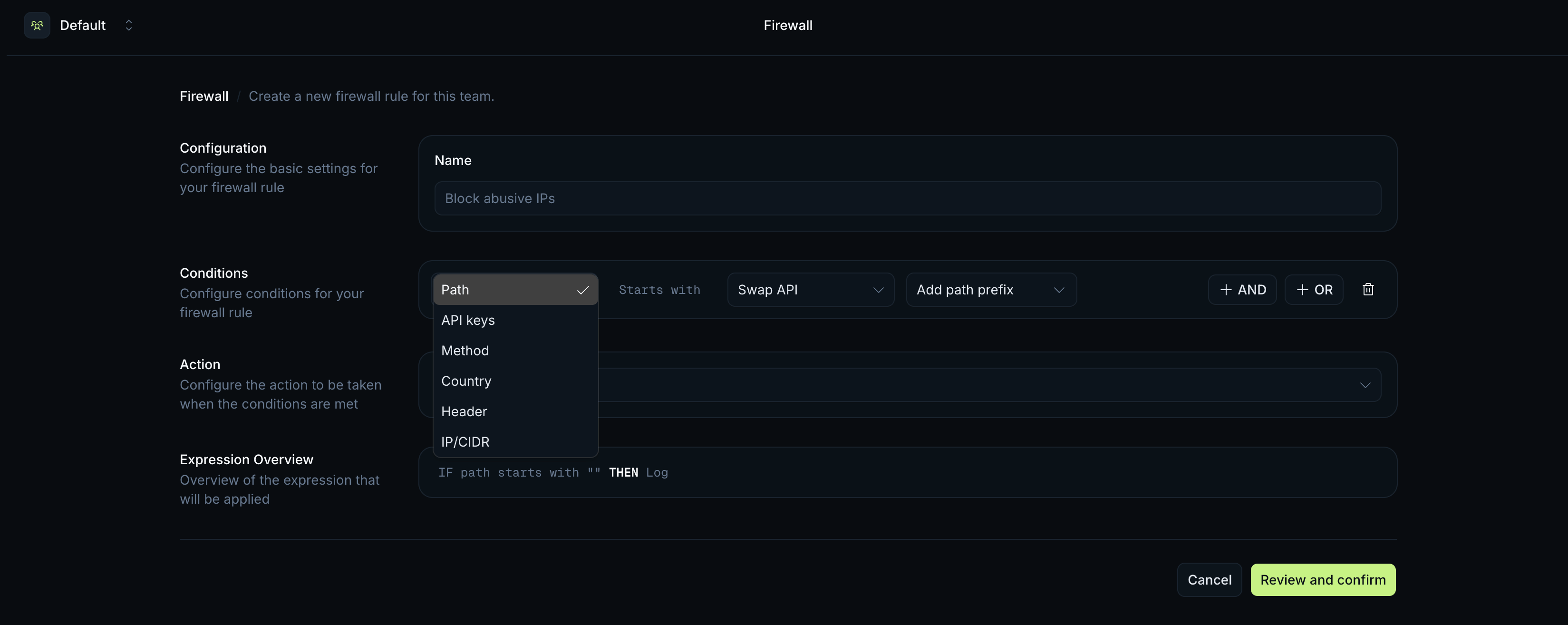
Add conditions
Pick a condition type and set its value. Add more if you need them, grouped with
AND (all must match) or OR (any can match). See Conditions.4
Choose an action
Pick
Log, Deny, Rate limit, or Bypass. For Rate limit, set the count, the window, and the scope. See Actions.5
Review and confirm
Read the
IF … THEN … Expression Overview, then confirm. New rules are enabled by default.Conditions
Each condition matches a request against one attribute. Combine them withAND/OR.
For example,
Path starts with /swap AND Country is any of United States, United Kingdom matches only swap requests from those two countries.
Actions
Each rule has one action.Rate-limit scopes
TheRate limit action allows N requests per window (in seconds or minutes) for traffic that matches the rule. The scope decides who that limit applies to:
For example, a rule on
Path starts with /tokens/v2/search set to 30 requests per 60 seconds per IP lets each visitor make 30 searches a minute. The same rule scoped per Team caps total search traffic across all your users.
A firewall rate limit stacks on top of your plan’s rate limit: a request can be within your plan quota and still get a 429 from a firewall rule.
Expression Overview
As you build a rule, Portal shows a plain-languageIF … THEN … version of it. Condition groups are wrapped in parentheses and joined with OR; conditions inside a group are joined with AND.
AND/OR or the wrong action.
Outcomes
The action decides the response:
A firewall
429 includes the same x-ratelimit-remaining, x-ratelimit-current, and x-ratelimit-reset headers as a plan rate limit. The body message tells the two apart: a firewall rule returns Too many requests, while the plan limit returns [API Gateway] Too many requests.
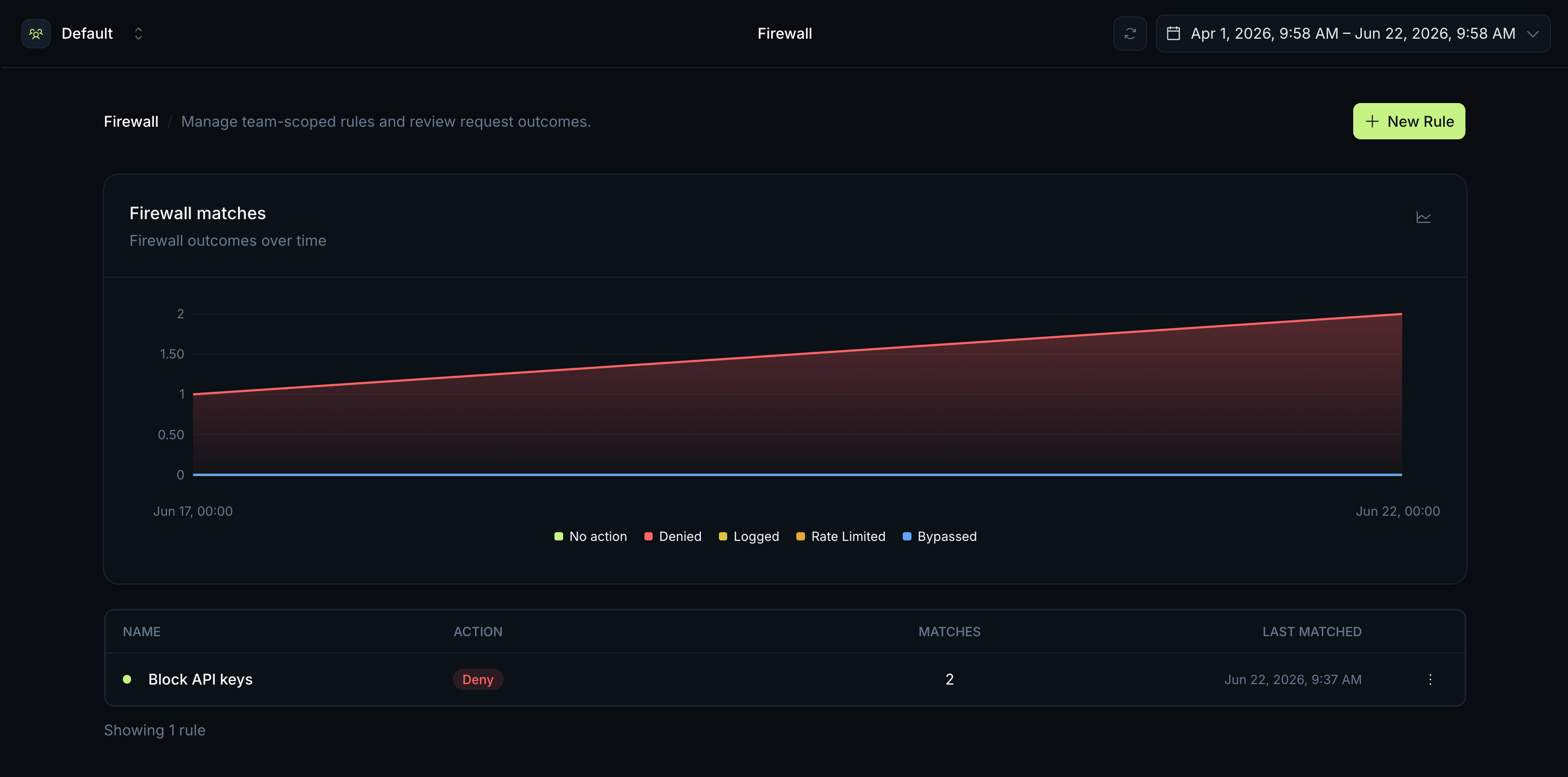
Each decision is visible after the request:
- Request logs show the firewall outcome and matching rules for each request.
- Firewall analytics show outcomes over time and how often each rule matched.
- Audit log records when firewall rules are created, updated, enabled, disabled, or deleted.
Related
API Keys & Permissions
Restrict a key to specific APIs to limit what a leaked key can do.
Request Logs
Inspect individual requests and the firewall decision for each.
Analytics
Track firewall outcomes and rule matches over time.
Rate Limits
See how plan limits and firewall rate limits combine.